
Overview
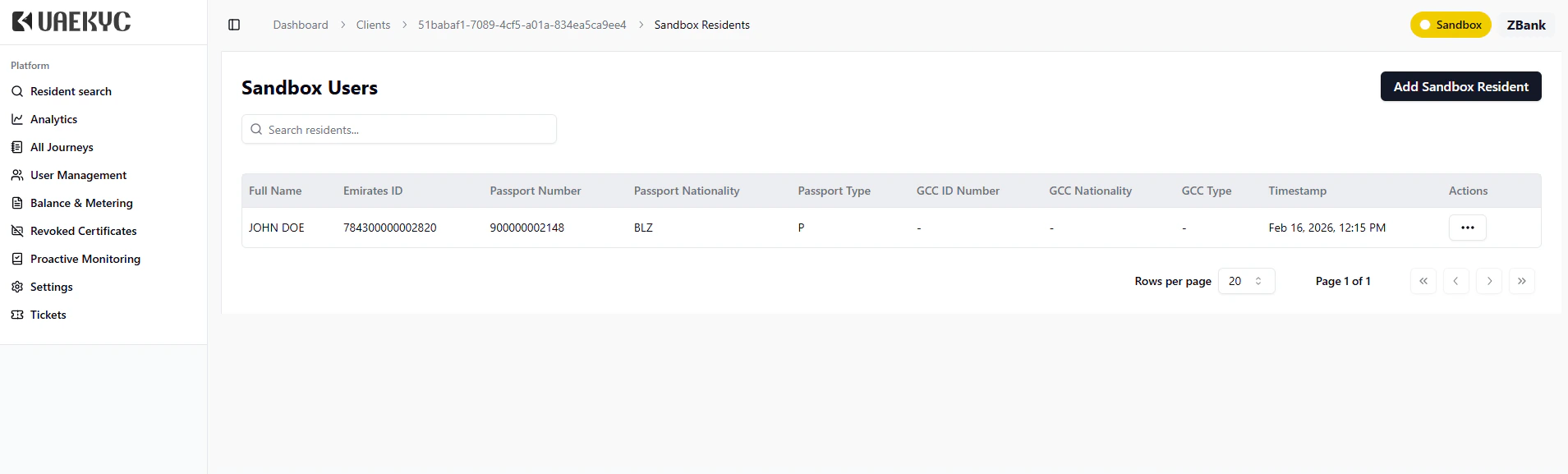
The Sandbox Residents module lets you:- Create test residents with specific identity details (Emirates ID, passport, biometrics)
- Configure test scenarios such as expired visas, out-of-UAE status, or revoked documents
- Edit resident data to test different validation outcomes
- Upload selfies for face matching and journey approval testing
Sandbox residents are only available in the Staging environment. See Environments for details on the three platform environments.
Accessing Sandbox Residents
- Log into the Staging Dashboard
- Navigate to your client organization
- Click Sandbox Residents in the left sidebar
Creating a Sandbox Resident
Click the Add Resident button (or equivalent) in the top-right corner of the Sandbox Residents page.
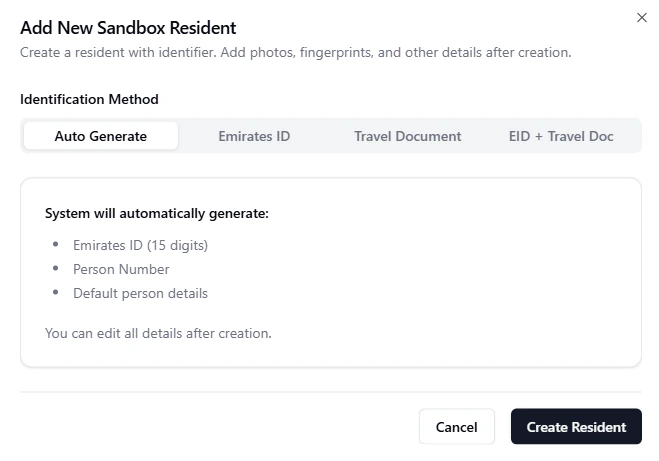
Auto-Assign
Automatically generates a resident with pre-filled mock data. Quick for basic testing, but some fields (such as
activePassport) may show “UNKNOWN” placeholders.Manual Entry
Manually enter all resident details including Emirates ID, passport information, and biometric data. Use this method when you need specific field values for targeted test scenarios.
784-1234-1234567-1John Smith1990-01-15GBRMaleAB12345672030-12-31ActiveACTIVETo test face matching during verification journeys, upload a selfie photo to the resident’s profile. This enables the backend face comparison step during journey processing.
Testing Scenarios
Edit sandbox resident fields to simulate specific verification outcomes:| Scenario | How to Configure |
|---|---|
| Successful verification | Set all fields to valid values, active visa, valid passport, upload matching selfie |
| Expired visa | Set the visa expiry date to a past date |
| Out-of-UAE status | Set immigration status to indicate the resident is outside the UAE |
| Expired passport | Set the passport expiry date to a past date |
| Document mismatch | Enter passport details that don’t match the Emirates ID record |
| Face mismatch | Upload a selfie that doesn’t match the document photo |
Sandbox resident data is editable at any time. You can modify fields to test different scenarios without creating new residents.
Using Sandbox Residents in Journeys
Once a sandbox resident is created, use their Emirates ID or passport details when initiating test journeys:- Call the Create Journey API with the sandbox resident’s details
- Initialize the SDK (Web, Android, or iOS) with the returned journey token
- Complete the verification flow using the sandbox resident’s document and selfie data
- Retrieve results via the Journey Details API or Customer Details API
Tips
- Use manual entry (not auto-assign) when testing passport-related flows to avoid “UNKNOWN” placeholder values
- Create multiple residents with different configurations to build a comprehensive test suite
- Upload selfies to sandbox profiles to test the full face matching pipeline
- Sandbox operations do not consume API credits