
Viewing Users
Navigate to User Management in the left sidebar to see all users in your organization.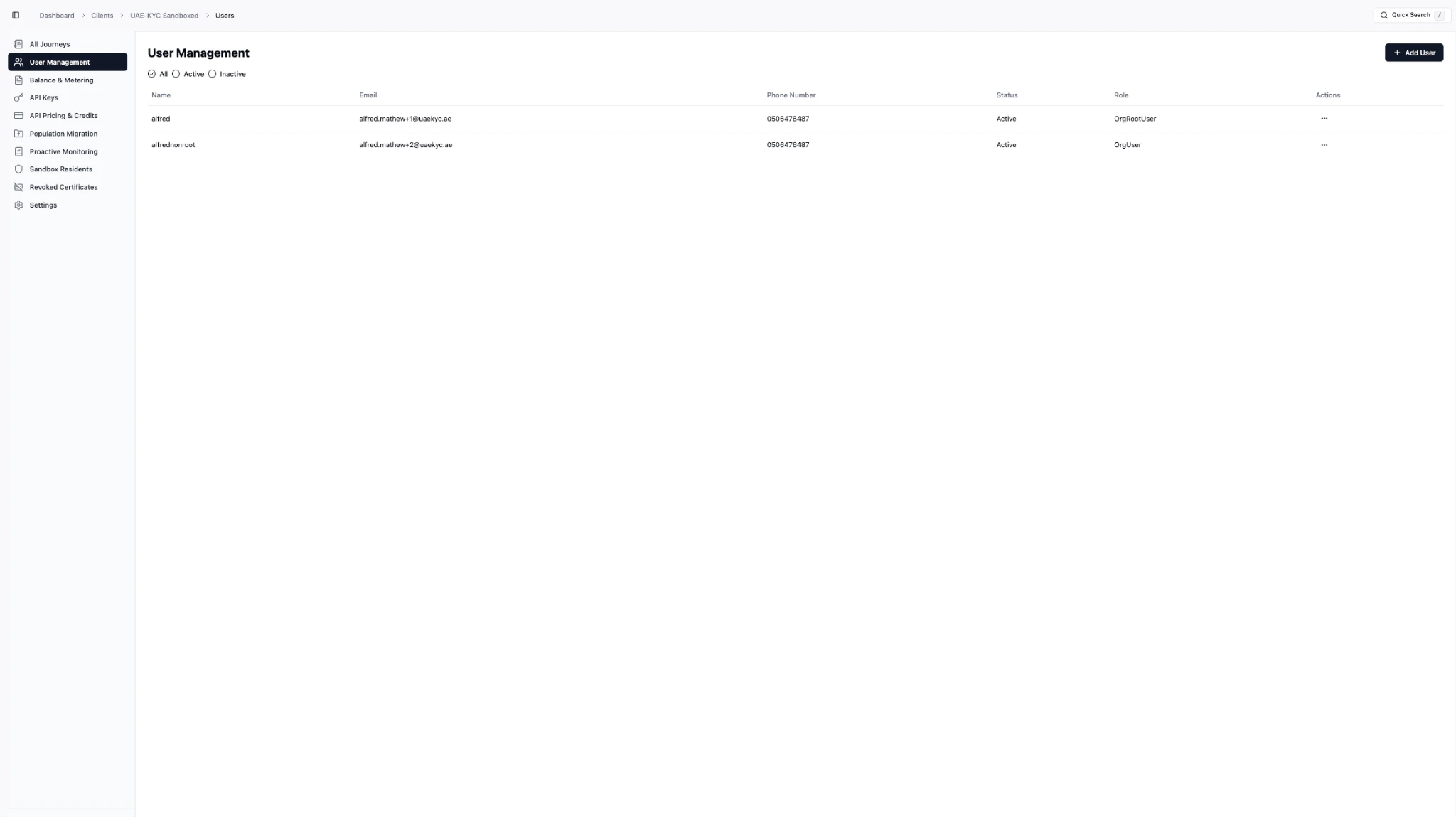
| Column | Description |
|---|---|
| Name | Username of the account |
| Corporate email address | |
| Phone Number | Contact phone number |
| Status | Active or Inactive |
| Role | User role (OrgRootUser, OrgUser, etc.) |
| Actions | Edit, deactivate, or manage the user |
Adding a New User
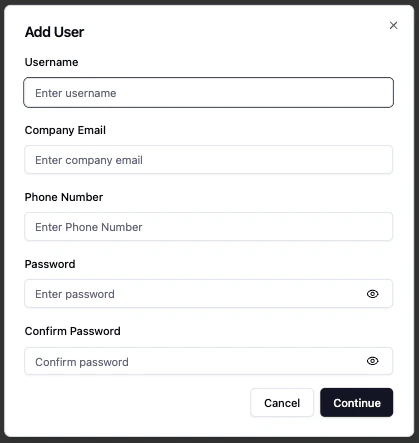
Organization User Roles
| Role | Description |
|---|---|
| OrgRootUser | Full administrative access to the organization. Can manage users, API keys, settings, and all platform features. |
| OrgUser | Standard user with access to journeys, analytics, and day-to-day operations. Cannot manage organization settings. |
Managing Existing Users
Click the Actions menu (three dots) on any user row to:- Edit user details (name, email, phone)
- Activate / Deactivate the account
- Reset password for the user